BioCV System Documentation
Complete User Manual for the BioCV Livestock Monitoring System
English
Quick Start Tutorial
New to BioCV? Start Here!
Our interactive Quick Start Tutorial will guide you through setting up your BioCV system step by step - from installing the app and registering your BioNode, to tagging your first animal and setting up monitoring alerts.
Takes about 10-15 minutes to complete
System Overview
The BioCV System is a comprehensive livestock monitoring solution designed to help farmers and agricultural professionals monitor animal health, predict important events, and manage their herds more effectively. The system combines hardware sensors, mobile applications, and cloud-based analytics to provide real-time insights into animal welfare.
System Data Flow
System Components
| Component | Description | Purpose |
|---|---|---|
BioNode | Wall-mounted sensor hub | Collects data from ear tags and environmental sensors |
BioTag (Ear Tag) | NFC-enabled ear tag | Tracks individual animal identity and health metrics |
LiSA Mobile App | Android application | Register tags, view data, receive alerts |
Web Application | Browser-based dashboard | Comprehensive data analysis and reporting |
BioCV Brain | Cloud AI platform | Processes data and generates predictions |
BioNode Installation
The BioNode is the central hub of the BioCV system. It must be properly installed to ensure reliable data collection from all ear tags in your facility.
Mounting the BioNode
- 1Mark the mounting holes
Use the BioNode as a template to mark the four corner holes on the wall.
- 2Drill the holes
Drill appropriate holes at the marked positions.
- 3Insert wall plugs
Place wall plugs (dowels) into the drill holes.
- 4Mount the BioNode
Align the BioNode with the holes and secure with four screws. Ensure sensors face downward.
Power Connection (PoE)
The BioNode is powered via Power over Ethernet (PoE). You will need a PoE injector or PoE switch that is 802.3at compliant (48V).
Dismantling the Connection Grommet:
- 1Unscrew the grommet
Unscrew the connection grommet from the RJ45 extender connector on the node.
- 2Loosen the union nut
Remove the union nut from the connection grommet.
- 3Remove the sealing plug
Push the blue waterproof sealing plug out of the connection grommet.
- 4Thread the cable
Feed the cable through the union nut, sealing plug, and grommet in sequence.
- 5Crimp if needed
Crimp the cable connector if necessary.
Mounting the Connection Grommet:
- 1Connect the cable
Plug the network cable connector into the extender port on the node.
- 2Secure the grommet
Screw the connector grommet back onto the extender port while countering.
- 3Insert the sealing plug
Push the blue sealing plug back into the screw cap (writing should be visible).
- 4Tighten the union nut
Tighten the union nut while countering on the connection spout.
- 5Verify the seal
Check that the sealing plug tightly encloses the cable.
Cable Assembly Order
Registering the BioNode
Once physically installed, register the BioNode in the BioCV LiSA app:
- 1Open the LiSA app
Navigate to Settings in the BioCV LiSA app.
- 2Click 'Add BioNode'
A QR code scanner window will open.
- 3Scan the QR code
Scan the QR code located on the BioNode device.
- 4Enter room name
Enter a descriptive name for the room/location.
- 5Confirm
Click OK to complete the registration.
Mobile App (LiSA)
The BioCV LiSA mobile app is your primary interface for interacting with the BioCV system. It allows you to register animals, view health data, receive alerts, and manage your farm.
Installation
- 1Open Google Play Store
On your Android device, open the Google Play Store application.
- 2Search for 'BioCV LiSA'
Use the search function to find the official BioCV LiSA app.
- 3Install the app
Tap 'Install' and wait for the download to complete.
- 4Open the app
Once installed, tap 'Open' or find the app icon on your home screen.
Login & Initial Setup
When you first open the app, you'll need to create an account or log in with provided credentials.
Account Creation:
- 1Enter your email
Provide a valid email address for your account.
- 2Create a password
Choose a secure password (minimum 8 characters, including uppercase, lowercase, and numbers).
- 3Set your custom name
Choose a display name that will identify you to other users.
- 4Select your role
Choose your role: Admin (full access), Manager (management access), or Worker (basic access).
User Roles:
| Role | Permissions |
|---|---|
Admin | Full access: manage users, settings, all data, and configurations |
Manager | Management features, view all data, limited administrative access |
Worker | Basic access: view assigned animals, record treatments, daily tasks |
Dashboard Overview
The mobile app dashboard provides quick access to all key features and real-time data.
Dashboard Features:
- Animal Overview
Total count of active animals and those requiring attention
- AI Predictions
Heat, birth, and lameness predictions at a glance
- Treatments
Pending and overdue treatment tasks
- Alerts
Real-time notifications for important events
Ear Tag Management
BioTags are NFC-enabled ear tags that allow the BioCV system to identify and track individual animals. Proper registration and application are essential for accurate monitoring.
Registering Ear Tags
Tag Registration Flow
Enable NFC on Your Smartphone:
- 1Open Settings
Tap the Settings icon on your smartphone's home screen.
- 2Find NFC settings
Navigate to 'Wireless & Networks' or 'Connected Devices' section.
- 3Enable NFC
Toggle the NFC switch to the 'On' position.
Register the Ear Tag:
- 1Open BioCV LiSA
Launch the app and log in with your credentials.
- 2Go to Localization
Navigate to the Localization tab in the app.
- 3Tap the '+' button
Click the add button in the bottom right corner.
- 4Scan the ear tag
Hold the ear tag against the NFC sensor on the back of your phone. Wait for detection.
- 5Enter Animal ID
Enter a unique identifier for the animal (e.g., your farm's numbering system).
- 6Select sex
Choose whether the animal is male or female.
- 7Optional: Add parent info
Enter mother and/or father ID if available.
- 8Submit
Press 'Submit' to complete registration.
Applying Ear Tags
Correct Tagging Location:
Tags should be applied in the middle third of the ear between the upper and lower cartilage. The closer to the head, the better for longevity.
Application Steps:
- 1Clean the equipment
Use rubbing alcohol or disinfectant to clean the tagger jaws and the tagging site on the animal's ear.
- 2Load the tagger
Place the male part fully onto the tagger pin, and the female part (ear tag with no hole) under the opposite clip, facing away from the tagger.
- 3Check alignment
Close the tagger until the two halves almost meet. Verify the pin is centered with the ear tag hole.
- 4Position and apply
Position the tagger at the identified tagging site. Firmly and quickly close the tagger, then release.
- 5Verify placement
Examine the tag to ensure it's positioned correctly, comfortably, and securely.
What NOT to Do:
- Do NOT pierce an artery or cartilage
- Do NOT pierce an area close to two arteries
- Do NOT pierce in the far outer regions of the ear
- Do NOT apply the ear tag on the outer half of the ear
Animal Management
The BioCV system provides comprehensive tools for managing your livestock, from registration to health monitoring and group organization.
Adding Animals
Animals can be added through the mobile app or web application. Each animal is identified by their ear tag's MAC address.
Required Information:
- Animal ID
Unique identifier (your farm's numbering system)
- MAC Address
Automatically captured when scanning the ear tag
- Sex
Male or Female
Optional Information:
- Group assignment
- Birth date
- Weight
- Parent information (Mother/Father ID)
- Notes
Managing Groups
Groups help organize animals by location, age, status, or any other criteria. Each group can be associated with specific BioNodes for location tracking.
- 1Create a group
Navigate to Animals > Groups and click 'Create Group'.
- 2Name the group
Enter a descriptive name (e.g., 'Farrowing Room 1', 'Gestation Pen A').
- 3Assign BioNodes
Select which BioNodes are associated with this group/location.
- 4Assign animals
Select animals to add to the group, or assign during animal registration.
Health Monitoring
The BioCV system continuously monitors animal health through sensor data analysis. Each animal receives a Health Score from 0-100 based on various metrics.
Health Score Ranges:
| Score Range | Status | Recommended Action |
|---|---|---|
80-100 | Excellent | No action needed |
60-79 | Good | Regular monitoring |
40-59 | Fair | Increased observation recommended |
20-39 | Poor | Veterinary assessment recommended |
0-19 | Critical | Immediate veterinary attention required |
AI Predictions
The BioCV Brain uses advanced machine learning algorithms to analyze sensor data and predict important events. These predictions help you make proactive management decisions.
AI Prediction Pipeline
Heat Detection
Heat detection predictions identify the optimal breeding window for sows. The system analyzes activity patterns, temperature changes, and behavioral data.
Responding to Heat Predictions:
- 1Review the prediction
Check the probability percentage and confidence level.
- 2Verify with observation
Confirm signs of heat through visual observation if needed.
- 3Schedule breeding
Plan artificial insemination within the optimal window.
- 4Record the event
Log the insemination in the system for tracking.
Birth Prediction
Birth predictions help you prepare for farrowing by estimating when a sow will give birth. This allows you to arrange staffing and prepare the farrowing area.
Preparation Checklist:
- Move sow to farrowing area 3-5 days before predicted date
- Prepare heat lamps and bedding
- Schedule staff coverage for predicted date
- Have veterinary contact available
- Monitor more frequently as date approaches
Lameness Detection
Lameness detection identifies mobility issues early, allowing for prompt treatment before the condition worsens.
Response Protocol:
- 1Physical examination
Observe the animal's gait and check for visible issues.
- 2Document findings
Record observations in the system.
- 3Create treatment
If lameness is confirmed, create a treatment plan.
- 4Schedule follow-up
Plan veterinary examination if needed.
- 5Monitor recovery
Track health score improvement after treatment.
Treatment Management
Track and manage medical treatments for your animals. The system supports various treatment types and helps ensure treatments are completed on schedule.
Treatment Types:
Creating a Treatment:
- 1Select the animal
Choose the animal requiring treatment from the dropdown.
- 2Choose treatment type
Select the appropriate category (antibiotic, vaccination, etc.).
- 3Enter medication details
Specify medication name, dosage, and frequency.
- 4Set schedule
Enter start date, interval between treatments, and total number of treatments.
- 5Set priority
Choose priority level (Low, Medium, High, Urgent).
- 6Add notes
Include any additional instructions or observations.
- 7Save treatment
Click Save to create the treatment record.
Treatment Status:
| Status | Description |
|---|---|
Scheduled | Treatment is planned but not yet started |
In Progress | Treatment has started, awaiting completion |
Completed | All treatments in the series have been administered |
Cancelled | Treatment was cancelled before completion |
Web Application
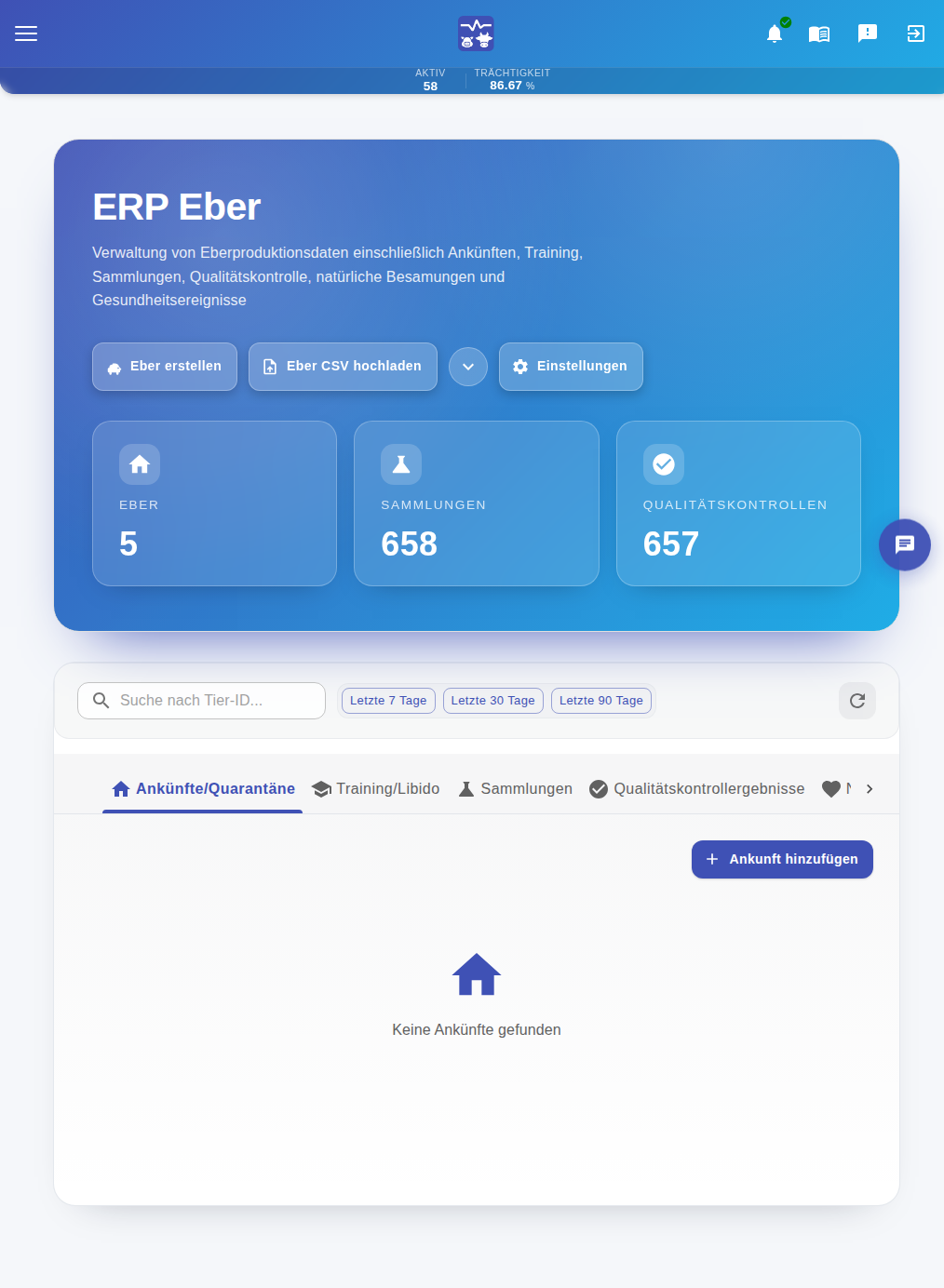
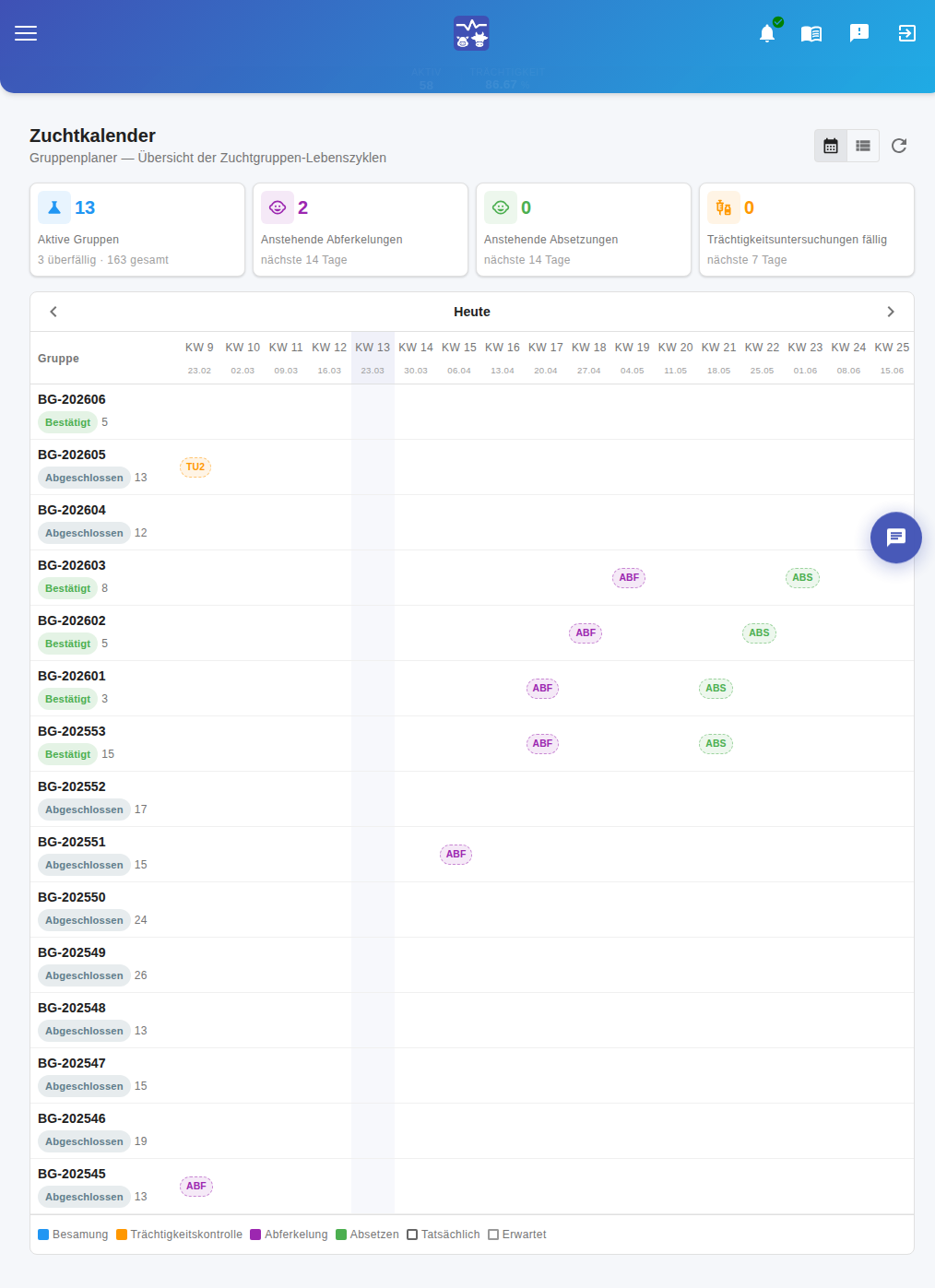
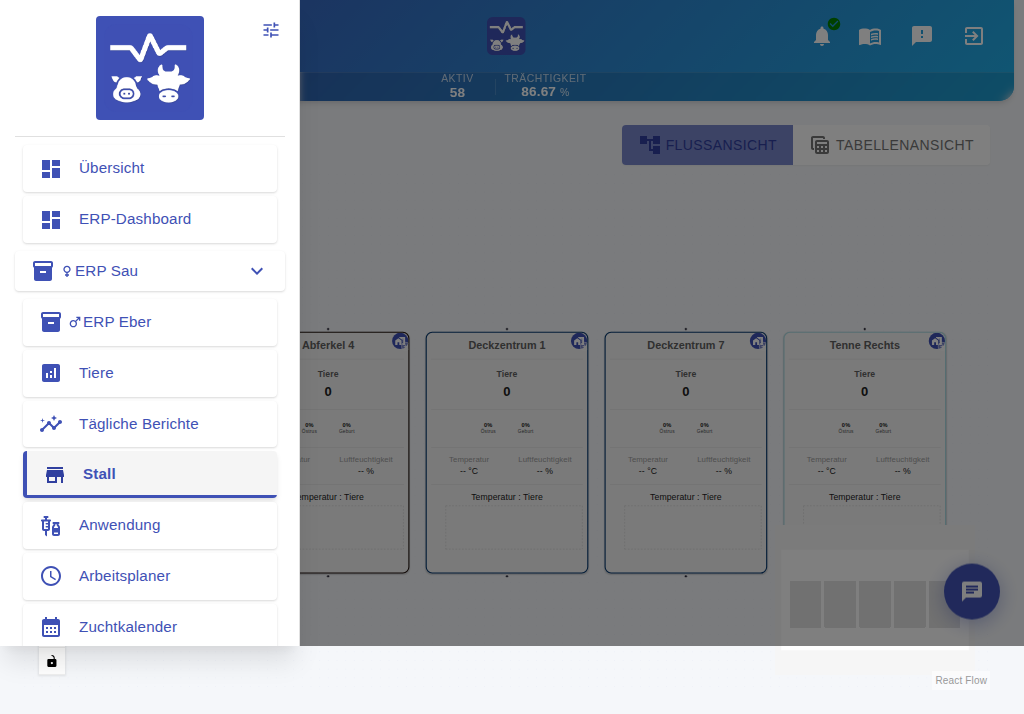
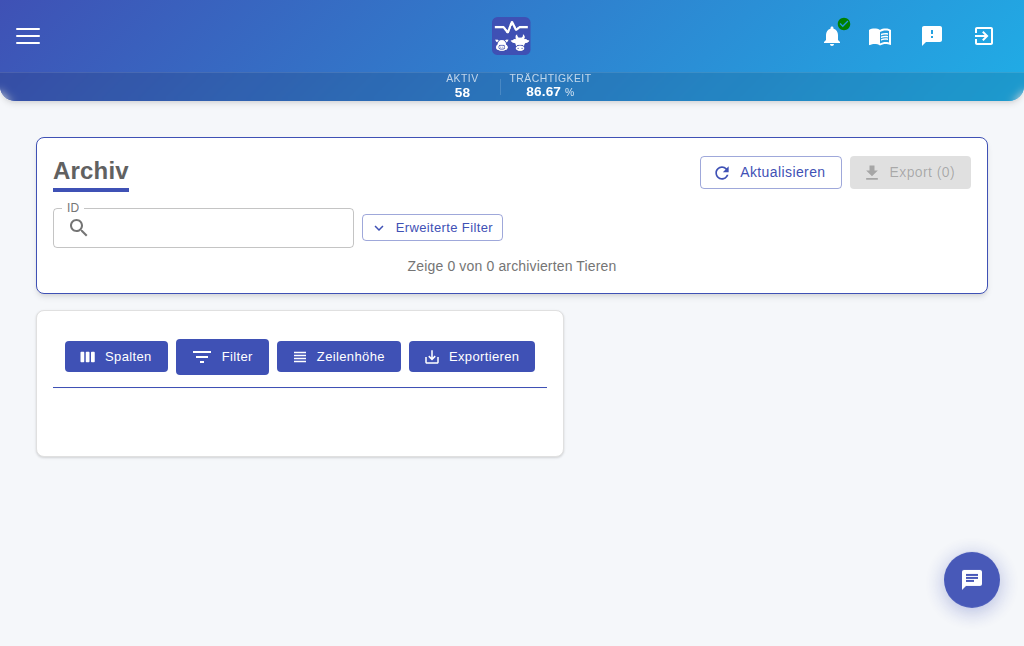
The BioCV Web Application provides comprehensive data analysis and management capabilities through a browser-based interface. biocv.web.app
Application Overview
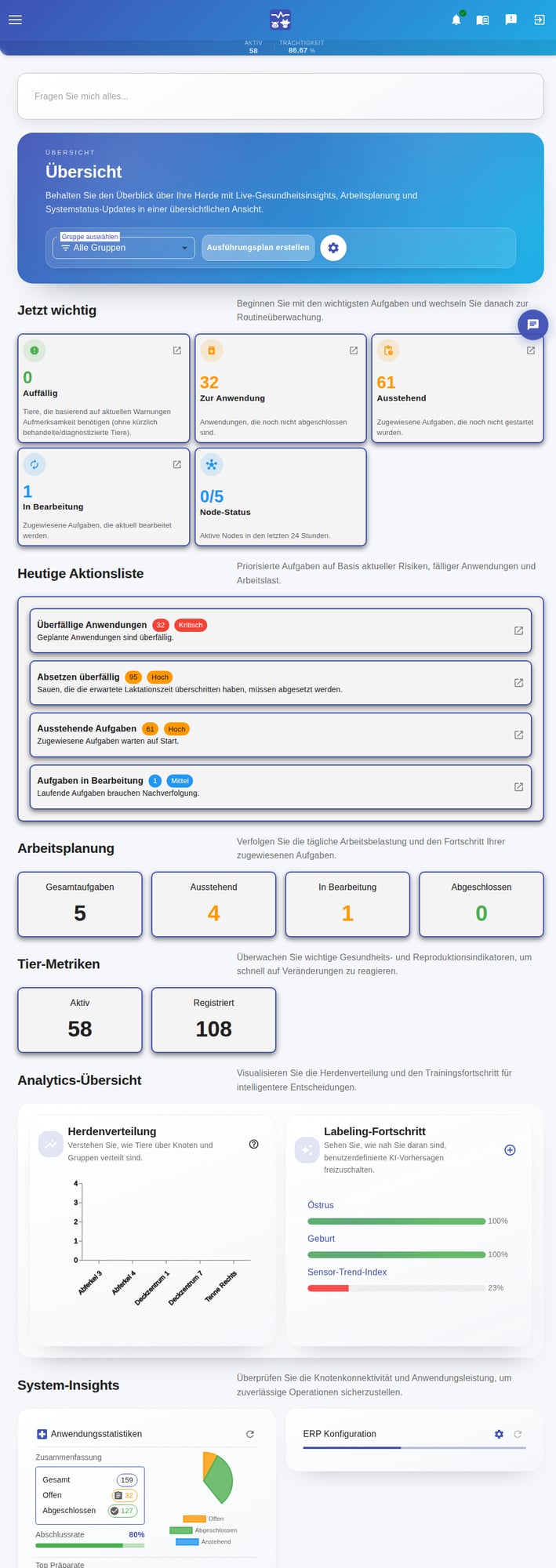
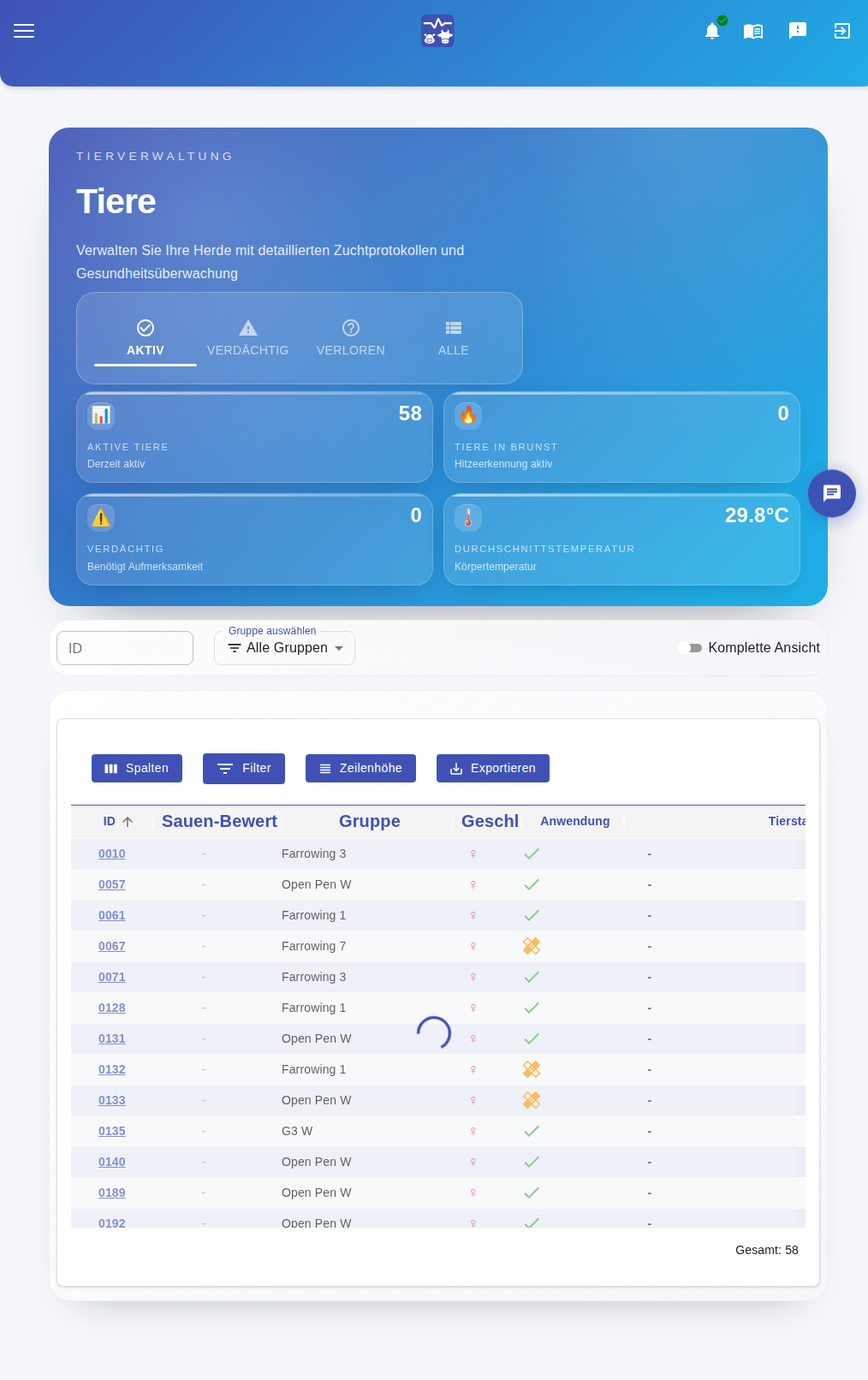
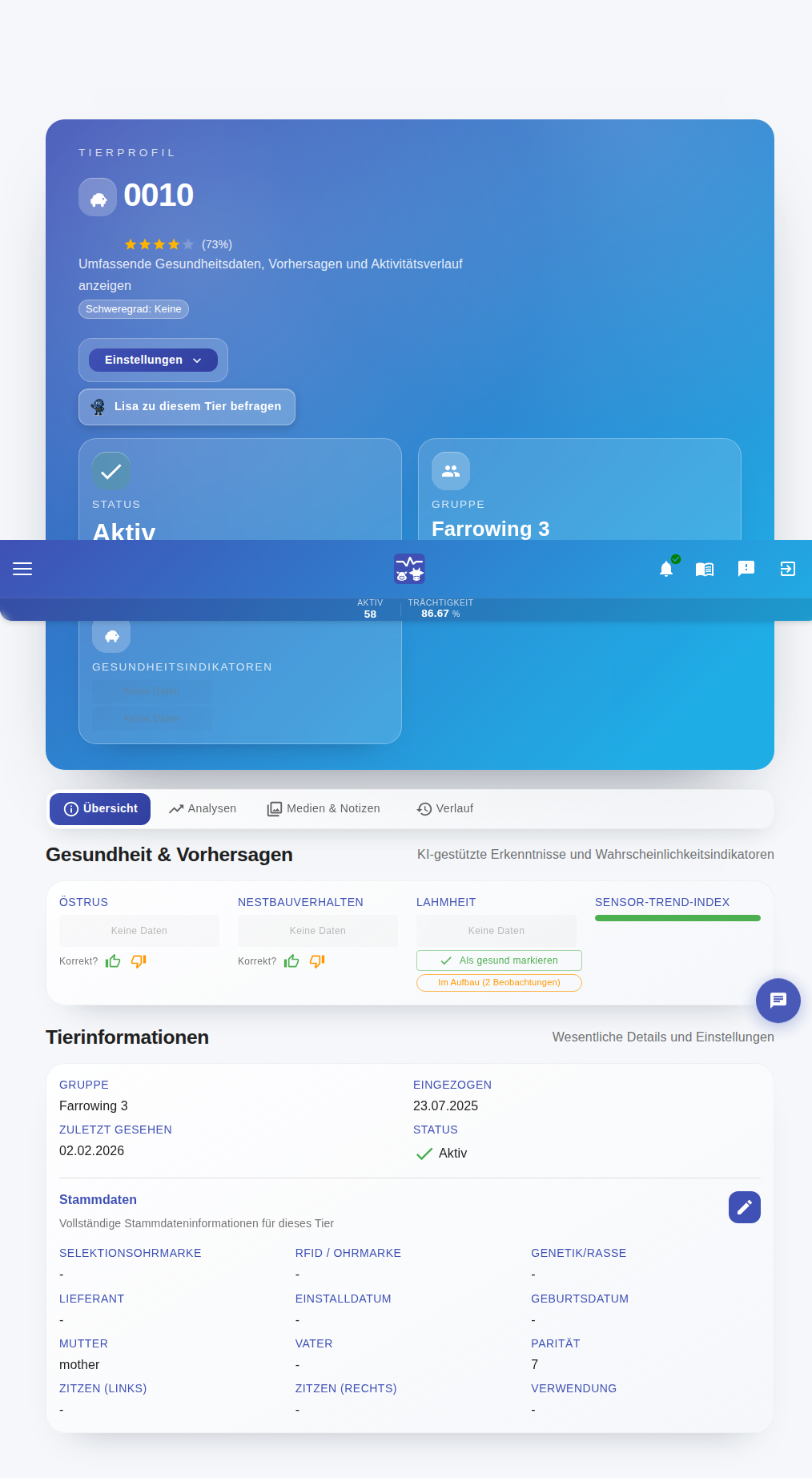
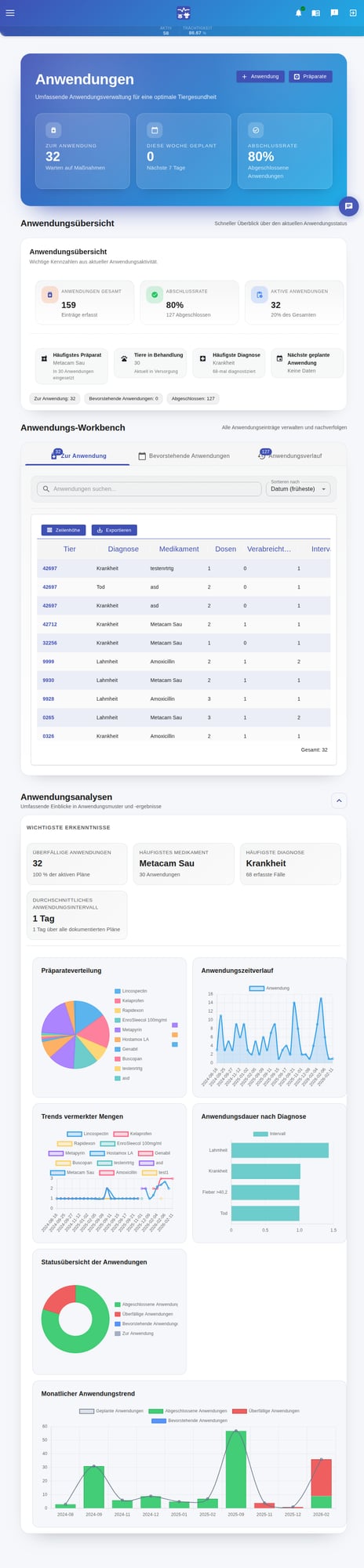
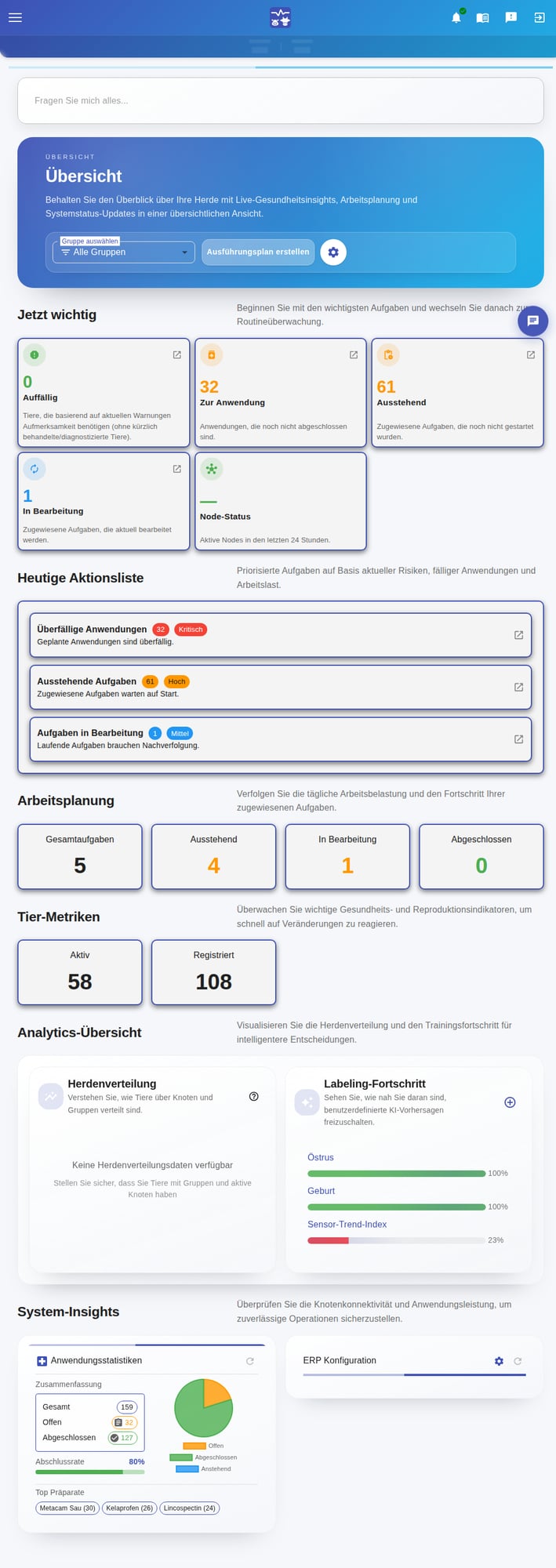
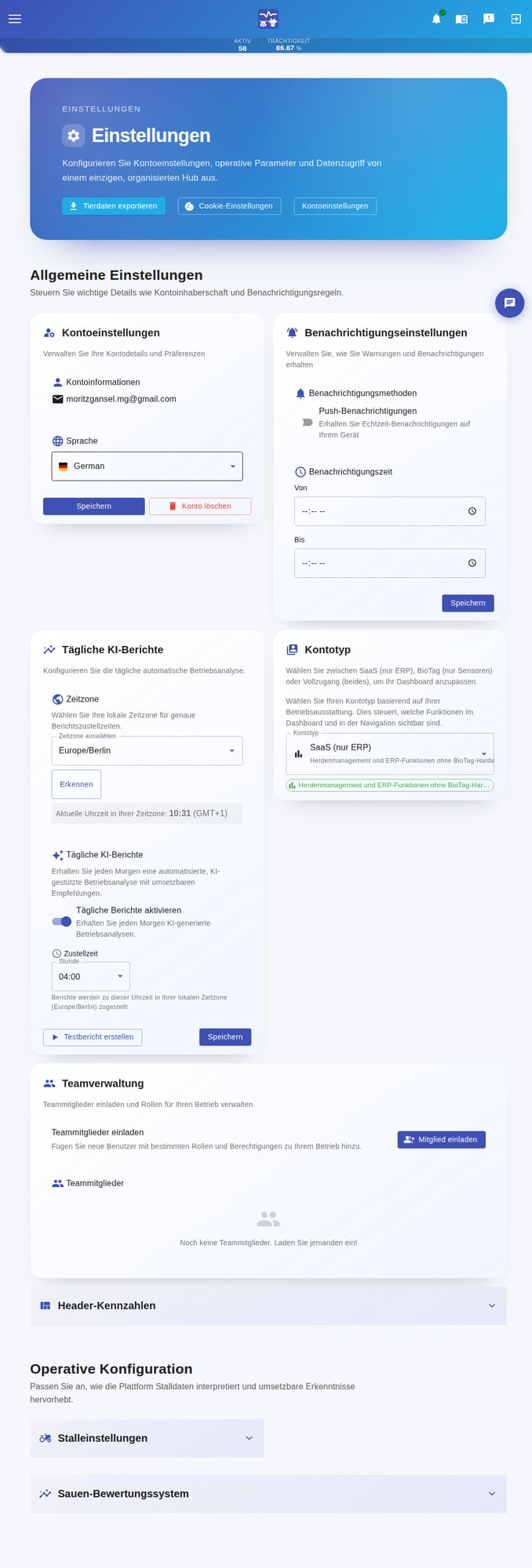
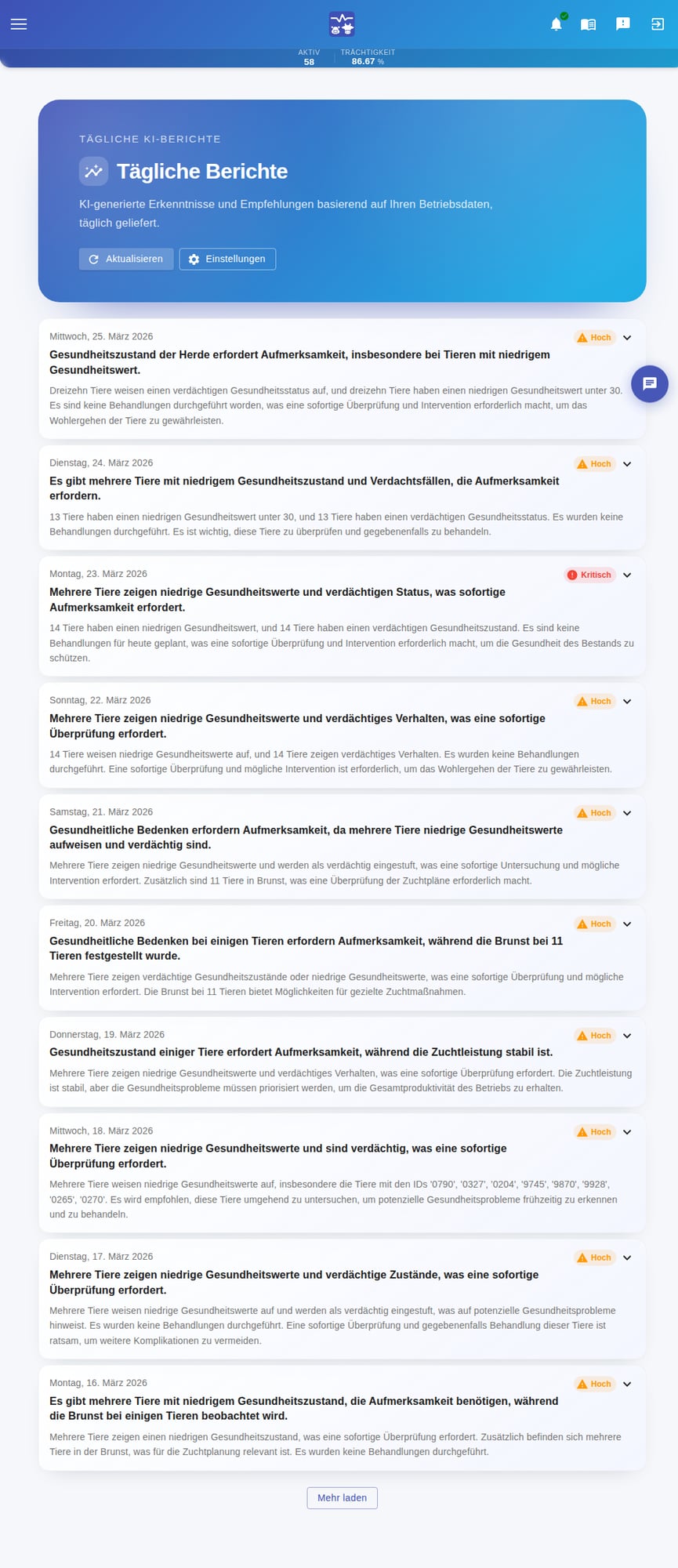
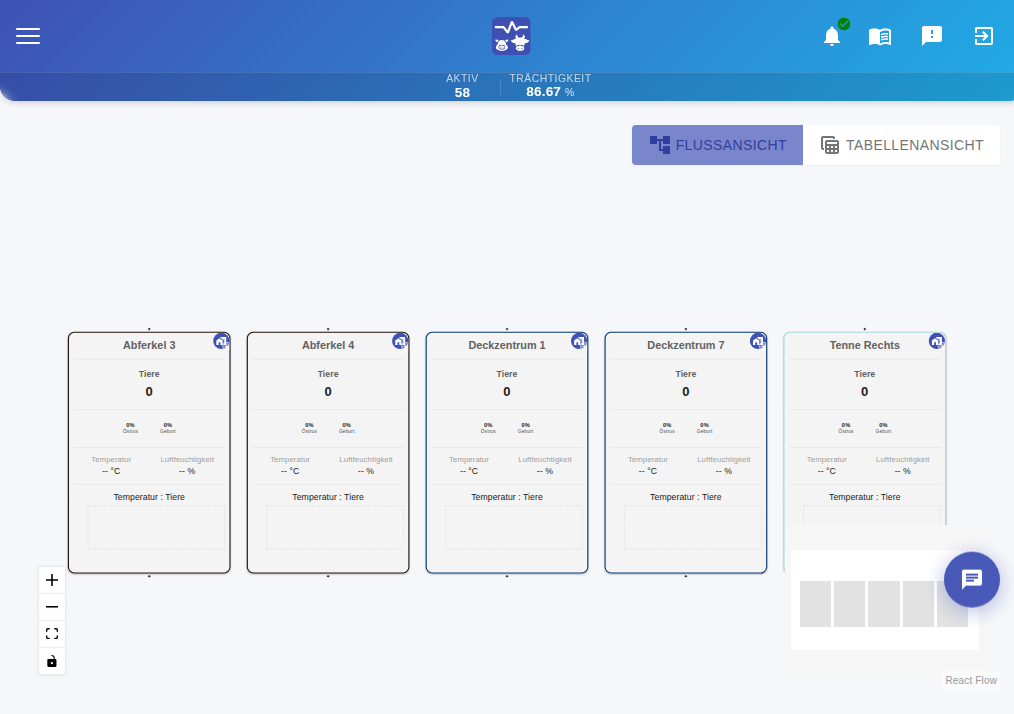

Dashboard Overview
Main Navigation:
- Dashboard
Overview of all key metrics and alerts
- Animals
Manage animals, groups, and view detailed records
- Predictions
View and filter AI predictions with detailed analysis
- Treatments
Treatment management and history
- Settings
Profile, preferences, and system configuration
Data Export
Export your data for external analysis or record-keeping. The web app supports multiple export formats and advanced filtering options.
Export Formats:
- CSV
Best for spreadsheet applications
- Excel
Includes formatting and multiple sheets
- PDF
Ready for printing and formal reports
Sow Management System
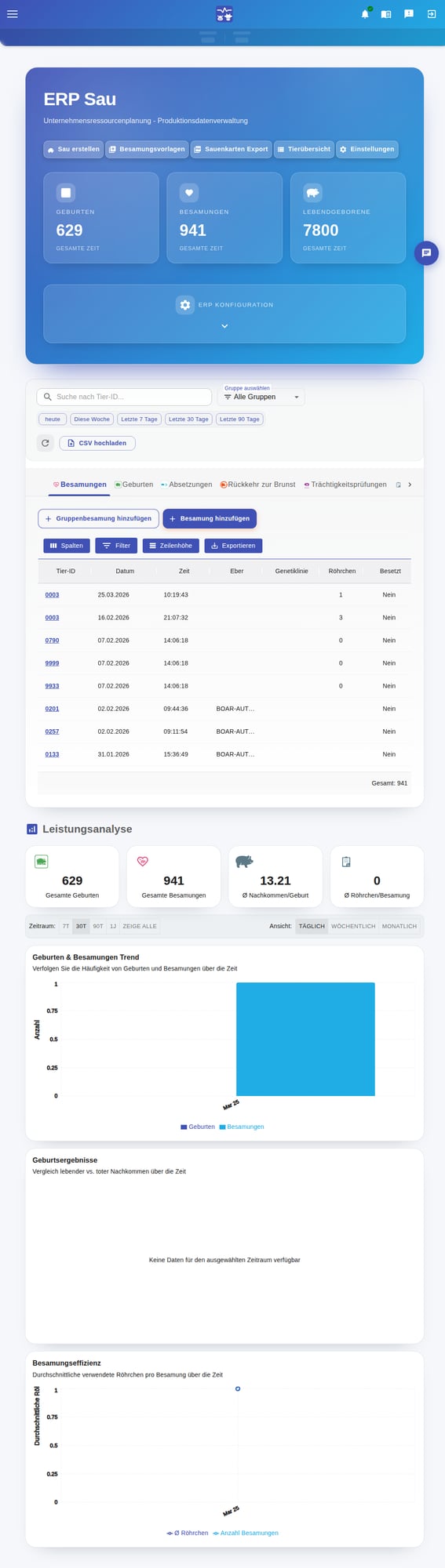
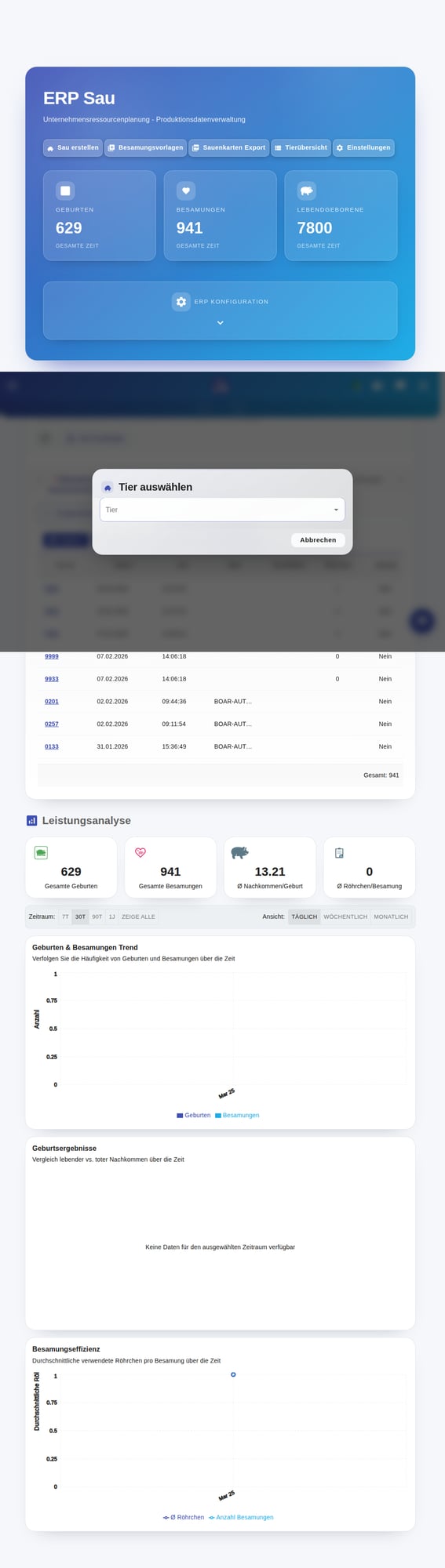
The Sow Management System (ERP) is a comprehensive production data management platform designed specifically for managing your sow breeding operations. This system helps you track, analyze, and optimize all aspects of your breeding herd, from insemination to weaning.
Overview & Dashboard
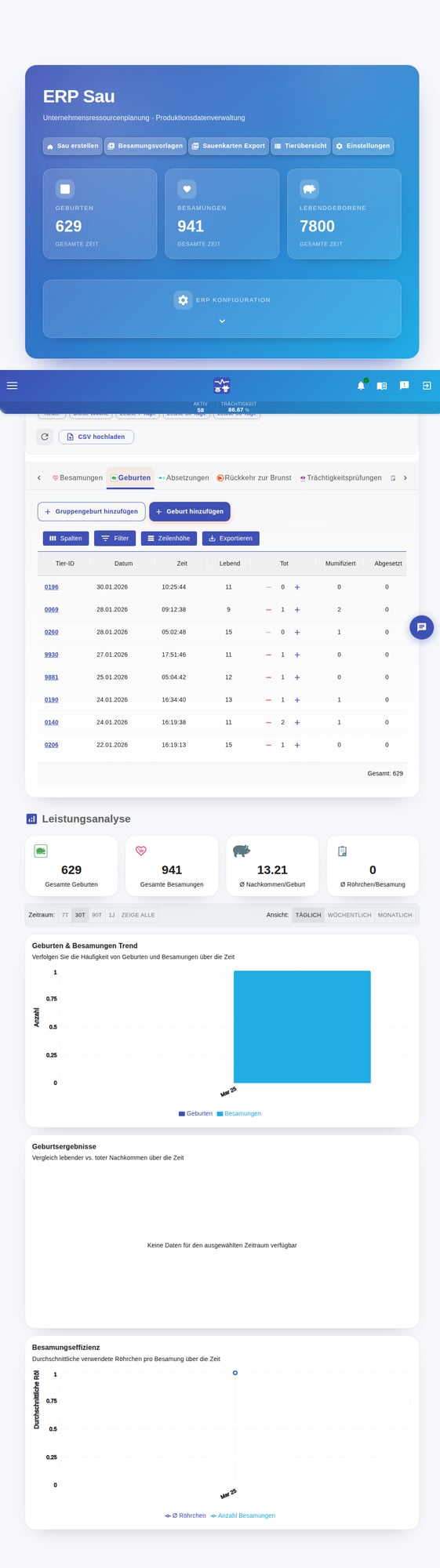
When you open the Sow Management System, you'll see a comprehensive dashboard that provides an overview of your production data at a glance.
Dashboard Statistics:
| Metric | Description |
|---|---|
| Births Count | Total number of birth/farrowing records in your system |
| Inseminations Count | Total number of insemination records |
| General Notes Count | Total number of general event records |
Record Type Tabs:
- Births
Track farrowing events including live born, stillborn, and mummified counts
- Inseminations
Record breeding events with boar, genetic line, and scan status
- General Notes
Log health events like sickness, death, lameness, or other observations
- Pregnancy Checks
Record pregnancy test results and methods
- Return to Estrus
Track when sows return to heat after insemination
- Weanings
Record weaning events with piglet counts and weights
- Movements
Track animal movements between production stages
Birth Records
Birth records are one of the most important events in your sow management system. They track the farrowing process and outcomes for each sow.
Birth Record Fields:
| Field | Description |
|---|---|
| Living Offspring | Count of live piglets born (used for NBA calculation) |
| Dead Offspring | Count of stillborn or dead piglets |
| Mummified | Count of mummified fetuses |
| Weaned Count | Number of piglets successfully weaned from this litter |
| Parity | The parity number for this birth (first litter, second litter, etc.) |
| Assisted Farrowing | Whether farrowing assistance was required |
| Farrowing Duration | Length of time for the farrowing process (in minutes) |
| Average Litter Weight | Average weight of the litter in kilograms |
- 1Click 'Add Birth'
Navigate to the Births tab and click the Add Birth button.
- 2Select the Sow
Choose the sow from the animal selection dialog.
- 3Enter Birth Details
Fill in date, time, living count, dead count, and other relevant fields.
- 4Add Complications (Optional)
Record any complications that occurred during farrowing.
- 5Save the Record
Click Save to store the birth record in the system.
Inseminations
Insemination records track when and how sows are bred, which is critical for managing breeding schedules and predicting farrowing dates.
Insemination Record Fields:
| Field | Description |
|---|---|
| Boar ID | The boar used for insemination |
| Genetic Line | Genetic line of the semen used |
| Tubes | Number of tubes used for this insemination |
| Service Type | AI (Artificial Insemination) or Natural |
| Technician | Who performed the insemination |
| Semen Batch | Batch identification for the semen used |
| Expected Farrowing Date | Auto-calculated (insemination date + 114 days) |
| Scan Status | Confirmed, Unconfirmed, or Not Scanned |
Batch Insemination Features:
- Comma-Separated Selection
Enter multiple animal IDs separated by commas for quick selection
- Common Field Sharing
Apply shared values (date, boar, technician) to all selected animals
- Per-Animal Overrides
Customize specific fields for individual animals when needed
- Auto Pre-population
Service number and parity are automatically loaded from previous records
Pregnancy & Weaning
Track pregnancy checks, returns to estrus, and weaning events to manage the complete reproductive cycle of your sows.
Pregnancy Checks:
Pregnancy checks confirm whether inseminations were successful. Record the check date, result (pregnant/not pregnant), and method used.
Return to Estrus:
When a sow returns to heat after insemination, record the return date and type (Regular, Irregular, or Abnormal). This helps identify breeding issues and plan re-breeding.
Weaning Records:
| Field | Description |
|---|---|
| sections.sowManagement.pregnancy.weaningFields.weaningDate.field | sections.sowManagement.pregnancy.weaningFields.weaningDate.description |
| sections.sowManagement.pregnancy.weaningFields.countWeaned.field | sections.sowManagement.pregnancy.weaningFields.countWeaned.description |
| sections.sowManagement.pregnancy.weaningFields.weaningWeight.field | sections.sowManagement.pregnancy.weaningFields.weaningWeight.description |
Sow Rating System
The Sow Rating System provides an automated, configurable 1-5 star rating for breeding sows based on their production performance, phenotypic characteristics, and behavioral traits.
Rating Categories:
| Category | Default Weight | Factors |
|---|---|---|
| Production Performance | 50% | Number Born Alive, Number Weaned, Farrowing Interval |
| Phenotypic Characteristics | 30% | Body Condition Score, Leg Structure |
| Behavioral Traits | 20% | Aggressive behavior flags, maternal behavior |
Star Rating Interpretation:
- sections.sowManagement.rating.stars.five.title
sections.sowManagement.rating.stars.five.description
- sections.sowManagement.rating.stars.four.title
sections.sowManagement.rating.stars.four.description
- sections.sowManagement.rating.stars.three.title
sections.sowManagement.rating.stars.three.description
- sections.sowManagement.rating.stars.two.title
sections.sowManagement.rating.stars.two.description
- sections.sowManagement.rating.stars.one.title
sections.sowManagement.rating.stars.one.description
Sow Card Export
Generate comprehensive PDF documents for individual sows with customizable design and field visibility. Sow cards include complete production history and breeding records.
Sow Card Sections:
- Identification
Animal ID, name, MAC address
- Basic Information
Birth date, breed, group, pen, health score, sow rating
- Production Summary
Total parity, total born, total weaned, average litter size
- Current Status
Reproductive status, last farrowing, expected farrowing date
- History Tables
Breeding history, farrowing history, treatment records
- 1Navigate to ERP Sow Cards
Go to the ERP section and select Sow Card Export.
- 2Search for Sows
Use the search box or enter comma-separated IDs to find sows.
- 3Customize (Optional)
Adjust field visibility, colors, fonts, and layout in the customization panel.
- 4Export PDF
Click Export PDF to generate and download the sow card.
ERP Settings
Configure the Sow Management System to match your farm's specific operations and standards.
sections.sowManagement.settings.cycleTitle
| Setting | sections.sowManagement.settings.cycleHeaders.value | Description |
|---|---|---|
| sections.sowManagement.settings.cycle.gestation.setting | sections.sowManagement.settings.cycle.gestation.value | sections.sowManagement.settings.cycle.gestation.description |
| sections.sowManagement.settings.cycle.estrous.setting | sections.sowManagement.settings.cycle.estrous.value | sections.sowManagement.settings.cycle.estrous.description |
| sections.sowManagement.settings.cycle.weanToEstrus.setting | sections.sowManagement.settings.cycle.weanToEstrus.value | sections.sowManagement.settings.cycle.weanToEstrus.description |
| sections.sowManagement.settings.cycle.lactation.setting | sections.sowManagement.settings.cycle.lactation.value | sections.sowManagement.settings.cycle.lactation.description |
KPI Alert Thresholds:
- sections.sowManagement.settings.kpi.farrowingRate.title
sections.sowManagement.settings.kpi.farrowingRate.description
- sections.sowManagement.settings.kpi.nonProductiveDays.title
sections.sowManagement.settings.kpi.nonProductiveDays.description
- sections.sowManagement.settings.kpi.preweaningMortality.title
sections.sowManagement.settings.kpi.preweaningMortality.description
sections.sowManagement.settings.filteringTitle
- sections.sowManagement.settings.filtering.animalIdSearch.title
sections.sowManagement.settings.filtering.animalIdSearch.description
- sections.sowManagement.settings.filtering.dateRange.title
sections.sowManagement.settings.filtering.dateRange.description
- sections.sowManagement.settings.filtering.csvImport.title
sections.sowManagement.settings.filtering.csvImport.description
sections.sowManagement.settings.performanceTitle
sections.sowManagement.settings.performanceDescription
Troubleshooting
Common issues and their solutions to help you resolve problems quickly.
BioNode not connecting to network
Diagnostic Flowchart
- Check PoE power
Verify the PoE injector/switch is powered on and the LED indicators show activity.
- Verify cable connection
Ensure the network cable is properly seated in both the BioNode and PoE device.
- Check PoE compatibility
Confirm your PoE device is 802.3at compliant (48V).
- Test with another cable
Try a different Cat5 or higher network cable.
NFC not detecting ear tag
Diagnostic Flowchart
- Enable NFC
Verify NFC is turned on in your phone's settings.
- Position correctly
Hold the ear tag flat against the back of your phone near the NFC sensor (usually center or top).
- Remove phone case
Thick or metallic phone cases can interfere with NFC signals.
- Hold steady
Keep the tag still for 2-3 seconds to allow detection.
App login issues
- Check credentials
Verify you're entering the correct email and password.
- Reset password
Use the 'Forgot Password' option to reset your credentials.
- Check internet connection
Ensure you have a stable internet connection.
- Update the app
Make sure you have the latest version installed.
- Clear app cache
Go to phone Settings > Apps > BioCV LiSA > Storage > Clear Cache.
Animal not appearing in system
- Wait for sync
Allow 5-10 minutes for the system to sync after registration.
- Check registration
Verify the ear tag was successfully registered (no error messages).
- Verify BioNode coverage
Ensure there's a BioNode within range of the animal's location.
- Refresh the app
Pull down to refresh or restart the app.
No predictions showing
- Allow data collection time
The AI needs at least 7-14 days of data before making accurate predictions.
- Check prediction thresholds
The predictions page only shows predictions above 65% probability by default.
- Verify sensor activity
Ensure ear tags are transmitting data (check in animal details).
Support & Contact
Our support team is here to help you get the most out of the BioCV system.
Contact Information:
- Email Support
support@biocv.com
- Business Hours
9:00 AM - 5:00 PM CET, Monday - Friday
- Emergency Support
Available 24/7 for critical issues (Premium plan)
Online Resources:
- FAQ Page
- Web Application
LISA REST API
The LISA REST API provides programmatic access to your BioCV livestock monitoring data. Integrate with third-party systems, build custom dashboards, or automate workflows with our comprehensive API endpoints.
API Data Flow Architecture
API Overview
The LISA API follows REST principles and returns JSON responses. Most endpoints require JWT bearer tokens; health and token endpoints are public.
| Feature | Details |
|---|---|
| Protocol | HTTPS only (TLS 1.2+) |
| Data Format | JSON (application/json) |
| Authentication | JWT (Bearer tokens) |
| API Version | v1 (current) |
| Rate Limiting | 100 requests/15 min per IP, plus a per-account daily quota by API tier |
Authentication
Use JWT bearer tokens for all protected endpoints. There are three ways to obtain a token, depending on your integration type.
Method 1: REST Login (Recommended for Server Integrations)
The simplest way to authenticate. Send your email and password to get a JWT token — no SDK or API keys required.
Step 1: Send a POST request with your credentials:
curl -X POST "https://api.biocv.info/api/v1/tokens/login" \
  -H "Content-Type: application/json" \
  -d '{"email": "user@example.com", "password": "your-password", "refreshToken": true}'
Response:
{
  "success": true,
  "data": {
    "accessToken": "eyJhbG...",
    "refreshToken": "eyJhbG...",
    "expiresAt": 1713276000000,
    "tokenType": "Bearer",
    "userUID": "abc123"
  }
}
Step 2: Use the access token in all subsequent API requests:
Authorization: Bearer <accessToken>
Step 3: Refresh your token before it expires (refresh tokens are valid for 7 days):
curl -X POST "https://api.biocv.info/api/v1/tokens/refresh" \
  -H "Content-Type: application/json" \
  -d '{"refreshToken": "eyJhbG..."}'
Method 2: Integrator Tokens (Server-to-Server)
For server-to-server integrations with a pre-registered integrator account, generate JWTs via POST /tokens with your integratorUID.
curl -X POST "https://api.biocv.info/api/v1/tokens" \
  -H "Content-Type: application/json" \
  -d '{"integratorUID": "your-integrator-uid"}'
Method 3: Firebase SDK (Client-Side Apps)
Only needed if your application already uses Firebase Authentication for user management. Requires Firebase SDK, API keys, and project configuration.
// JavaScript - Firebase Authentication
import { getAuth, signInWithEmailAndPassword } from "firebase/auth";

const auth = getAuth();
const userCredential = await signInWithEmailAndPassword(
  auth,
  "user@example.com",
  "password"
);

// Get the JWT token
const token = await userCredential.user.getIdToken();
Include the token in API requests:
Authorization: Bearer eyJhbGciOiJSUzI1NiIsInR5cCI6IkpXVCJ9...
Firebase Authentication Flow
Base URLs & Environments
| Environment | Base URL | Purpose |
|---|---|---|
Production | https://api.biocv.info/api/v1 | Live production data |
Development | http://localhost:3000/api/v1 | Local development |
Health Check
Check API status (no authentication required).
| Method | Endpoint | Description |
|---|---|---|
GET | /health | Get API status |
Token Management
Generate and manage JWT access and refresh tokens.
| Method | Endpoint | Description |
|---|---|---|
POST | /tokens/login | Login with email/password to get JWT tokens |
GET | /tokens | Get token endpoint overview |
POST | /tokens | Generate access and refresh tokens |
GET | /tokens/validate | Validate a JWT token |
POST | /tokens/refresh | Refresh an access token |
POST | /tokens/revoke | Revoke a JWT token |
GET | /tokens/info | Get detailed token information |
Users
Manage user profiles and device tokens (admin or ownership required).
| Method | Endpoint | Description |
|---|---|---|
GET | /users | List users (admin only) |
GET | /users/:userId | Get user details |
POST | /users | Create a user (BDUser permission) |
PUT | /users/:userId | Update a user |
PATCH | /users/:userId | Partially update a user |
DELETE | /users/:userId | Delete a user |
GET | /users/search | Search users (admin only) |
GET | /users/:userId/profile | Get public profile info |
GET | /users/:userId/fcm-tokens | List FCM tokens for a user |
POST | /users/:userId/fcm-tokens | Add an FCM token |
PATCH | /users/:userId/status | Update user status flags |
Animals
Retrieve animals and ANT+ location detections for a user.
| Method | Endpoint | Description |
|---|---|---|
GET | /users/:userId/animals | List animals for a user |
GET | /users/:userId/animals/:animalId | Get a specific animal |
GET | /users/:userId/animals/search | Search animals with filters |
GET | /users/:userId/animals/:animalMac/locations | Get ANT+ location detections |
GET /users/:userId/animals - List Animals
Query Parameters:
page | Page number (default: 1) |
limit | Items per page (default: 10, max: 100) |
sortBy | Sort field (default: t) |
sortOrder | Sort order (asc/desc, default: desc) |
Response (200 OK):
{
  "success": true,
  "data": [
    {
      "MAC": "AA:BB:CC:DD:EE:FF",
      "ID": "SOW-2024-001",
      "Active": true,
      "Archived": false,
      "Suspicious": false,
      "Group": "Gestation 3",
      "Sex": "female",
      "Father": "BOAR-2020-012",
      "Mother": "SOW-2021-045",
      "Node": "2025.0008",
      "NodeWeight": 0.57,
      "WatchdogWeight": 0,
      "SignalStrength": 2,
      "Battery": 86,
      "CurrentActivity": 0.439,
      "DailyActivityLevel": 0.327,
      "CurrentTemperature": 37.6,
      "ReferenceTemperature": 36.8,
      "ReferenceTemperatureUpdatedAt": 1779262036773,
      "ReferenceTemperatureWindowDays": 7,
      "HealthScore": 92,
      "HeatProbability":  { "t": 1779228252190, "Result": 0.12 },
      "BirthProbability": { "t": 1779260404150, "Result": 0.04 },
      "EartagStart": 1750963064891,
      "Uid": "<owner-user-id>",
      "t": 1779260000000
    }
  ],
  "pagination": {
    "page": 1,
    "limit": 10,
    "total": 245,
    "totalPages": 25
  },
  "timestamp": "2026-05-20T08:00:00.000Z"
}
Animal fields (response payload)
Every animal object returned by the endpoints above shares the same shape. Optional fields may be absent or null when the sensor has not produced data yet.
| Field | Type | Description |
|---|---|---|
MAC | string | Hardware MAC address of the BioTag attached to the animal. Used as the animal identifier in URLs. |
ID | string | Human-readable identifier (eartag number or custom name) shown in the app. |
Active | boolean | True while the tag is producing data and the animal is being monitored. |
Archived | boolean | True if the animal has been moved out of the active herd. |
Suspicious | boolean | True if the system has flagged the animal for review (sensor anomalies, unusual behavior). |
Group | string | Group, pen, or barn section the animal currently belongs to. |
Sex | string | Sex of the animal (typically 'female' for sows). |
Father | string | Optional pedigree reference for the sire. |
Mother | string | Optional pedigree reference for the dam. |
Node | string | BioNode the tag is currently routed through. |
Battery | number | BioTag battery level, 0 to 100. |
CurrentActivity | number | Latest activity reading (acceleration magnitude). |
DailyActivityLevel | number | Aggregated activity over the last 24 hours. |
CurrentTemperature | number | Latest ear-pinna temperature in degrees Celsius. NOT a core body temperature. |
ReferenceTemperature | number | null | Rolling 7-day median of CurrentTemperature for this animal. Null while the tag is still calibrating (less than 7 days of data or fewer than 100 valid samples in the window). |
ReferenceTemperatureUpdatedAt | number | Wall-clock (ms since Unix epoch, UTC) of the last baseline refresh. |
ReferenceTemperatureWindowDays | number | Window length used to compute the baseline, in days (currently always 7). |
HealthScore | number | Composite health score, 0 to 100. Higher is better. |
HeatProbability | object | null | Latest heat prediction result with timestamp and probability (0 to 1). |
BirthProbability | object | null | Latest birth prediction result with timestamp and probability (0 to 1). |
EartagStart | number | Timestamp (ms since Unix epoch) when the tag was first attached. |
Uid | string | Owner user ID (the same userId passed in the URL). |
t | number | Timestamp (ms since Unix epoch) of the most recent update to this animal record. |
Temperature: CurrentTemperature vs ReferenceTemperature
The CurrentTemperature field is the latest ear-pinna reading from the BioTag, not a core body temperature. Absolute pinna values shift with ambient conditions (ventilation, sun exposure, tag fit), so the clinically meaningful signal is the deviation from the animal's own baseline:
delta = CurrentTemperature - ReferenceTemperature
ReferenceTemperature is a rolling 7-day median of CurrentTemperature, computed per animal and refreshed once per day. Samples outside 25 to 42 degrees Celsius are dropped as sensor noise before the median is taken.
Calibration window. ReferenceTemperature is null while a tag has fewer than 7 days of data or fewer than 100 valid samples in the window. Render an honest 'calibrating' fallback in the UI rather than substituting a default value.
Suggested deviation bands (starting point, tune per herd)
| Band | Delta | Interpretation |
|---|---|---|
| Green | < 0.3 °C | Within normal variation. |
| Yellow | 0.3 – 0.6 °C | Watch. |
| Red | > 0.6 °C | Investigate (heat or fever signal). |
AI Predictions
Access AI-generated predictions for a specific animal.
| Method | Endpoint | Description |
|---|---|---|
GET | /users/:userId/animals/:animalMac/predictions | List predictions for an animal |
GET | /users/:userId/animals/:animalMac/predictions/:classificationType | Get predictions by classification type |
GET | /users/:userId/animals/:animalMac/predictions/recent | Get recent predictions |
GET | /users/:userId/animals/:animalMac/predictions/range | Get predictions in a date range |
GET /users/:userId/animals/:animalMac/predictions - Predictions
Response (200 OK):
{
  "data": [
    {
      "id": "pred_heat_001",
      "animalId": "animal_abc123",
      "type": "heat",
      "probability": 0.87,
      "confidence": "high",
      "predictedWindow": {
        "start": "2024-12-31T06:00:00Z",
        "end": "2024-12-31T18:00:00Z"
      },
      "factors": [
        "Increased activity",
        "Temperature elevation",
        "Movement pattern change"
      ],
      "createdAt": "2024-12-30T14:00:00Z"
    }
  ],
  "pagination": {
    "page": 1,
    "limit": 50,
    "total": 12
  }
}
Treatments
Access and manage treatment records for a user.
| Method | Endpoint | Description |
|---|---|---|
GET | /users/:userId/treatments | List treatments for a user |
GET | /users/:userId/treatments/:treatmentId | Get treatment details |
GET | /users/:userId/treatments/search | Search treatments with filters |
GET | /users/:userId/treatments/active | Get active treatments |
GET | /users/:userId/treatments/archived | Get archived treatments |
POST | /users/:userId/treatments | Create a new treatment record |
Births
Access birth records and statistics for a user.
| Method | Endpoint | Description |
|---|---|---|
GET | /users/:userId/births | List birth records |
GET | /users/:userId/births/:birthId | Get birth record details |
GET | /users/:userId/births/search | Search birth records with filters |
GET | /users/:userId/births/active | Get active birth records |
GET | /users/:userId/births/archived | Get archived birth records |
GET | /users/:userId/births/statistics | Get birth statistics |
POST | /users/:userId/births | Create a new birth record |
GET /users/:userId/births/statistics - Response (200 OK)
{
  "success": true,
  "data": {
    "totalBirths": 25,
    "totalLiving": 300,
    "totalDead": 5,
    "averageLitterSize": 12.2,
    "survivalRate": 98.36
  },
  "timestamp": "2024-12-01T08:47:16.838Z"
}
LitterGuards
Monitor LitterGuard devices and sensor data.
| Method | Endpoint | Description |
|---|---|---|
GET | /users/:userId/litterguards | List LitterGuard devices |
GET | /users/:userId/litterguards/summary | Get LitterGuard summary statistics |
GET | /users/:userId/litterguards/:macAddress | Get LitterGuard device details |
GET | /users/:userId/litterguards/:macAddress/sensordata | Get sensor readings for a device |
GET | /users/:userId/litterguards/:macAddress/sensordata/latest | Get latest sensor readings |
GET | /users/:userId/litterguards/:macAddress/analytics | Get device analytics |
GET | /users/:userId/litterguards/search | Search LitterGuard devices |
Inseminations
Access and manage insemination records for a user. Track breeding events, search by criteria, and manage active/archived records.
| Method | Endpoint | Description |
|---|---|---|
GET | /users/:userId/inseminations | List all inseminations for a user |
GET | /users/:userId/inseminations/search | Search inseminations with filters |
GET | /users/:userId/inseminations/active | Get active insemination records |
GET | /users/:userId/inseminations/archived | Get archived insemination records |
GET | /users/:userId/inseminations/:inseminationId | Get a specific insemination record |
POST | /users/:userId/inseminations | Create a new insemination record |
Sensor Data
Access raw sensor readings, latest values, and analytics for individual animals. Sensor data is collected via BioTag+ ear tags and transmitted through BioNode gateways.
| Method | Endpoint | Description |
|---|---|---|
GET | /users/:userId/animals/:animalMac/sensordata | Get sensor readings for an animal (supports date range query params) |
GET | /users/:userId/animals/:animalMac/sensordata/latest | Get the latest sensor reading for an animal |
GET | /users/:userId/animals/:animalMac/sensordata/analytics | Get sensor analytics and aggregated data for an animal |
Use startDate and endDate query parameters to filter sensor data by time range.
Animal Events & Records
Access per-animal event records including births, inseminations, pregnancy checks, return-to-estrus, weanings, movements, and general events. All endpoints are nested under a specific animal.
Births
| Method | Endpoint | Description |
|---|---|---|
GET | /users/:userId/animals/:mac/births | List births for an animal |
GET | /users/:userId/animals/:mac/births/recent | Get recent births |
GET | /users/:userId/animals/:mac/births/range | Get births in a date range |
GET | /users/:userId/animals/:mac/births/:id | Get a specific birth record |
POST | /users/:userId/animals/:mac/births | Create a birth record for an animal |
Inseminations
| Method | Endpoint | Description |
|---|---|---|
GET | /users/:userId/animals/:mac/inseminations | List inseminations for an animal |
GET | /users/:userId/animals/:mac/inseminations/recent | Get recent inseminations |
GET | /users/:userId/animals/:mac/inseminations/range | Get inseminations in a date range |
GET | /users/:userId/animals/:mac/inseminations/:id | Get a specific insemination record |
POST | /users/:userId/animals/:mac/inseminations | Create an insemination record for an animal |
General Events
| Method | Endpoint | Description |
|---|---|---|
GET | /users/:userId/animals/:mac/general-events | List general events for an animal |
GET | /users/:userId/animals/:mac/general-events/recent | Get recent general events |
GET | /users/:userId/animals/:mac/general-events/:id | Get a specific general event |
Pregnancy Checks
| Method | Endpoint | Description |
|---|---|---|
GET | /users/:userId/animals/:mac/pregnancy-checks | List pregnancy checks for an animal |
GET | /users/:userId/animals/:mac/pregnancy-checks/recent | Get recent pregnancy checks |
GET | /users/:userId/animals/:mac/pregnancy-checks/:id | Get a specific pregnancy check |
POST | /users/:userId/animals/:mac/pregnancy-checks | Create a pregnancy check for an animal |
Return to Estrus
| Method | Endpoint | Description |
|---|---|---|
GET | /users/:userId/animals/:mac/return-to-estrus | List return-to-estrus events for an animal |
GET | /users/:userId/animals/:mac/return-to-estrus/recent | Get recent return-to-estrus events |
GET | /users/:userId/animals/:mac/return-to-estrus/:id | Get a specific return-to-estrus event |
POST | /users/:userId/animals/:mac/return-to-estrus | Create a return-to-estrus event for an animal |
Weanings
| Method | Endpoint | Description |
|---|---|---|
GET | /users/:userId/animals/:mac/weanings | List weanings for an animal |
GET | /users/:userId/animals/:mac/weanings/recent | Get recent weanings |
GET | /users/:userId/animals/:mac/weanings/:id | Get a specific weaning record |
POST | /users/:userId/animals/:mac/weanings | Create a weaning record for an animal |
Movements
| Method | Endpoint | Description |
|---|---|---|
GET | /users/:userId/animals/:mac/movements | List movements for an animal |
GET | /users/:userId/animals/:mac/movements/recent | Get recent movements |
GET | /users/:userId/animals/:mac/movements/:id | Get a specific movement record |
POST | /users/:userId/animals/:mac/movements | Create a movement record for an animal |
Partner Management
Manage integrator-to-user account linking. Partners (integrators) can link to user accounts to access their data through the API.
| Method | Endpoint | Description |
|---|---|---|
POST | /partners/link | Link an integrator to a user account |
POST | /partners/unlink | Remove an integrator link from a user account |
GET | /partners/:integratorUID/users | List all users linked to an integrator |
GET | /partners/user/:userId | List all integrators linked to a user |
Error Handling
The API uses standard HTTP status codes and returns detailed error messages in JSON format.
| Status Code | Meaning | Common Causes |
|---|---|---|
200 | OK | Request successful |
201 | Created | Resource created successfully |
400 | Bad Request | Invalid parameters, malformed JSON |
401 | Unauthorized | Missing or invalid authentication |
403 | Forbidden | Insufficient permissions |
404 | Not Found | Resource does not exist |
429 | Too Many Requests | Rate limit exceeded |
500 | Server Error | Internal server error |
Error Response Format:
{
  "success": false,
  "error": "Invalid request parameters",
  "details": [
    {
      "field": "birthDate",
      "message": "Must be a valid ISO 8601 date"
    }
  ],
  "timestamp": "2024-12-01T08:47:16.838Z"
}
Rate Limits & Quotas
API usage is governed by two independent limits: an infrastructure rate limit per IP address, and a per-account daily quota based on your API tier. Both apply to every authenticated request.
IP rate limit
| Category | Limit | Window |
|---|---|---|
| General API | 100 requests | 15 minutes |
| Token endpoints | 20 requests | 15 minutes |
API tiers (per-endpoint daily quota)
On top of the IP limit, each account has a daily call quota counted separately per endpoint. Reads and writes both count. Quotas reset every day at 00:00 UTC. Your tier is set on your account; contact BioCV to upgrade.
| Tier | Calls per endpoint / day | Raw sensor data |
|---|---|---|
| Free / Sandbox | 10 | Not included |
| Starter | 1,000 | Not included |
| Pro / Integrator | 10,000 | Included |
| Enterprise / Partner | Unlimited | Included |
Code Examples
Complete examples in popular programming languages to help you get started quickly.
JavaScript / Node.js
// Using fetch API
const API_BASE = "https://api.biocv.info/api/v1";
const token = "your_jwt_token";
const userId = "user123";

// List animals
async function listAnimals() {
  const response = await fetch(`${API_BASE}/users/${userId}/animals?page=1&limit=10`, {
    headers: {
      "Authorization": `Bearer ${token}`,
      "Content-Type": "application/json"
    }
  });
  return response.json();
}

// Get recent predictions for an animal
async function getRecentPredictions(animalMac) {
  const response = await fetch(
    `${API_BASE}/users/${userId}/animals/${animalMac}/predictions/recent?limit=10`,
    {
      headers: {
        "Authorization": `Bearer ${token}`,
        "Content-Type": "application/json"
      }
    }
  );
  return response.json();
}

// Example usage
const animals = await listAnimals();
if (animals.data?.length) {
  const predictions = await getRecentPredictions(animals.data[0].macAddress);
  console.log(`Predictions: ${predictions.data.length}`);
}
Python
import requests

API_BASE = "https://api.biocv.info/api/v1"
USER_ID = "user123"
HEADERS = {
    "Authorization": "Bearer YOUR_JWT_TOKEN",
    "Content-Type": "application/json"
}

def list_animals(page=1, limit=10):
    response = requests.get(
        f"{API_BASE}/users/{USER_ID}/animals",
        headers=HEADERS,
        params={"page": page, "limit": limit}
    )
    return response.json()

def get_birth_statistics():
    response = requests.get(
        f"{API_BASE}/users/{USER_ID}/births/statistics",
        headers=HEADERS
    )
    return response.json()

def get_recent_predictions(animal_mac, limit=10):
    response = requests.get(
        f"{API_BASE}/users/{USER_ID}/animals/{animal_mac}/predictions/recent",
        headers=HEADERS,
        params={"limit": limit}
    )
    return response.json()

# Example usage
animals = list_animals()
print(f"Found {animals['pagination']['total']} animals")

stats = get_birth_statistics()
print(f"Total births: {stats['data']['totalBirths']}")

if animals["data"]:
    predictions = get_recent_predictions(animals["data"][0]["macAddress"])
    print(f"Recent predictions: {len(predictions['data'])}")
Web App User Guide
Comprehensive guide for using the BioCV web application. This section covers all features accessible through the browser-based interface.
Getting Started
Your first steps after logging into the BioCV web application.
What You'll Learn
- How to navigate the main interface
- Understanding the dashboard
- Setting up your first animals
- Configuring basic settings
Sidebar Navigation
| Menu Item | Purpose |
|---|---|
| Dashboard | Overview and key metrics |
| Animals | View and manage all animals |
| Planner & AI | AI predictions and planning tools |
| Barn | Barn layout and pen management |
| Treatments | Health treatments and records |
| Work Planner | Task scheduling and management |
| BioT Dashboard | IoT sensor monitoring |
| ERP Dashboard | Production metrics |
| Archive | Archived animals |
| Settings | Configuration and preferences |
| Cockpit | Quick data entry (mobile-optimized) |
Dashboard Overview
The Dashboard is your central hub for monitoring farm operations. It provides at-a-glance visibility into animal status, predictions, treatments, and tasks.
Dashboard Cards
- Active Animals
Total count of currently active animals
- Registered Animals
Total animals ever registered including active and archived
- Suspicious Animals
Count of animals with Health Score below 50
- Animals in Heat
Animals currently detected as being in heat based on AI predictions
- Births
Recent birth events typically from last 7 days
- Reluctant Animals
Animals with breeding difficulties
Health Score Ranges
| Score Range | Status | Description |
|---|---|---|
| 80-100 | Excellent | No concerns |
| 50-79 | Monitor | May need attention soon |
| Below 50 | Suspicious | Investigate immediately |
Cockpit
The Cockpit is a mobile-optimized interface designed for quick data entry while working in the barn.
Quick Action Tiles
| Tile | Purpose |
|---|---|
| Birth | Record farrowing events |
| Insemination | Record breeding |
| Pregnancy Check | Record pregnancy results |
| Return to Estrus | Record failed conception |
| Weaning | Record weaning events |
| Movement | Transfer animals |
| General Event | Record observations |
| Sow Card | View animal card |
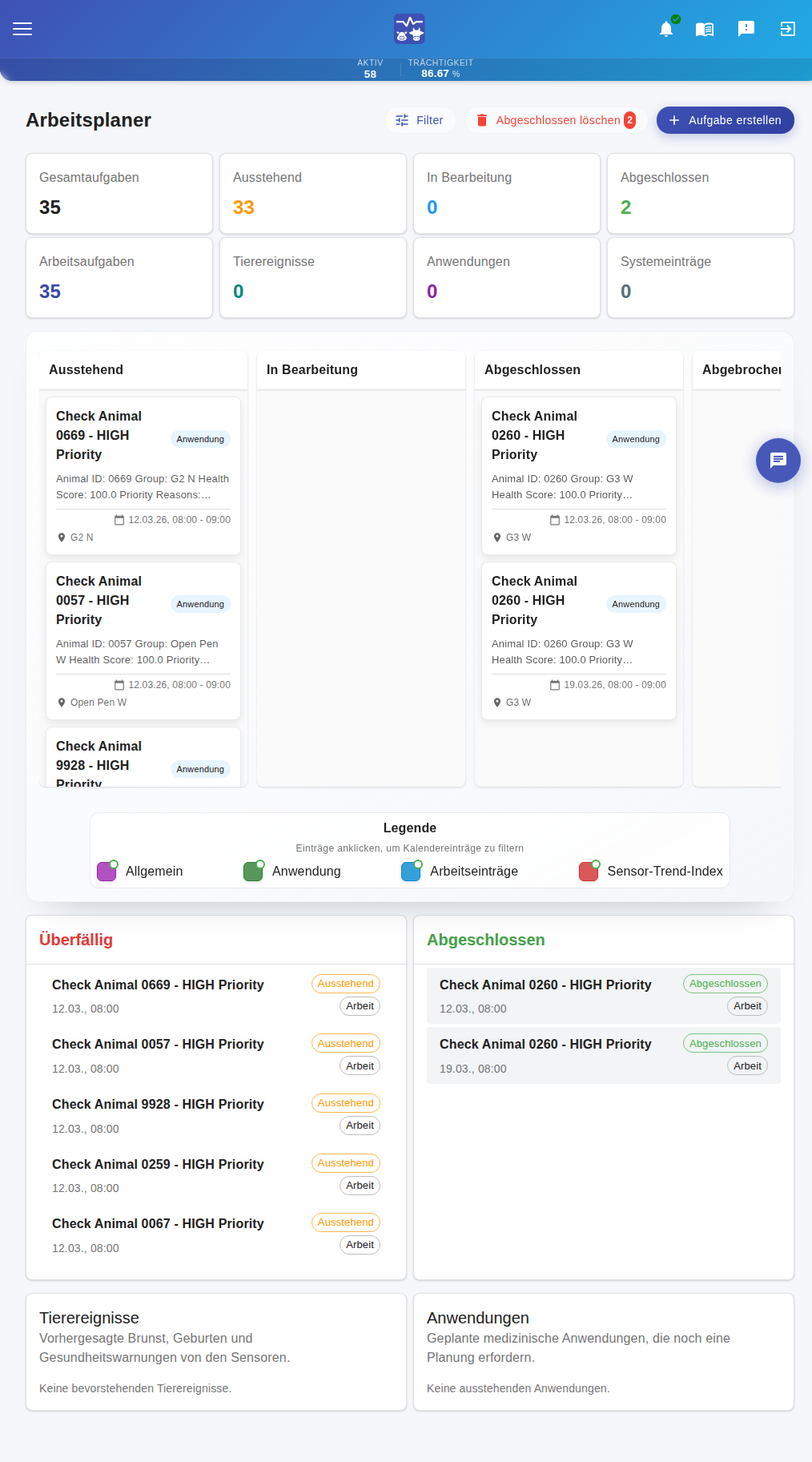
Work Planner
The Work Planner helps you schedule, assign, and track farm tasks.
Priority Levels
| Priority | Use When |
|---|---|
| Critical | Urgent, immediate attention |
| High | Important, same-day priority |
| Medium | Standard priority |
| Low | Can wait, backlog item |
Animal Management Guide
Comprehensive guide for managing your herd in BioCV. This section covers registering, viewing, and managing animals.
Adding Animals
How to register new animals in BioCV, whether adding a single animal or importing many at once.
Adding Methods
| Method | Description | Best For |
|---|---|---|
| Single Entry | Add one animal at a time through a form | Single new animals, corrections |
| CSV Import | Bulk import from spreadsheet data | Large batches, initial setup |
| Delivery Note Import | Parse delivery documents for animal data | Purchased animals with documentation |
Required Fields
- Animal ID
Unique identifier for this animal
- Animal Type
Sow or Boar
- Sex
Male or Female
Viewing Animals
The Animals page provides a comprehensive grid view of all your animals.
Grid Columns
| Column | Description |
|---|---|
| Animal ID | Unique identifier (clickable to open details) |
| Name | Display name if set |
| Type | Sow or Boar |
| Status | Active, Inactive, or Suspicious |
| Health Score | 0-100 score from sensor data |
| Group | Assigned animal group |
| Pen | Current pen location |
| Last Seen | Most recent sensor activity |
| Predictions | AI prediction indicators |
Health Score Colors
- 80-100: Healthy
- 50-79: Monitor
- 0-49: Suspicious
Animal Details
The Animal Details page provides comprehensive information about a single animal.
Available Tabs
- Overview
- History
- Events
- Treatments
- Predictions
- Sensor Data
Archiving Animals
Archiving removes an animal from active lists while preserving all historical data.
Archive Process
- 1Step 1
Navigate to animal's detail page
- 2Step 2
Click Archive button
- 3Step 3
Select archive reason
- 4Step 4
Add notes if needed
- 5Step 5
Confirm archival
Events & Recording
Recording reproductive and operational events is essential for tracking animal progress and maintaining accurate production records.
Event Types
| Type | Purpose | Frequency |
|---|---|---|
| Insemination | Record breeding attempts | Per breeding cycle |
| Pregnancy Check | Confirm pregnancy status | 1-2 per pregnancy |
| Birth | Document farrowing | Per litter |
| Weaning | Record piglet separation | Per litter |
| Movement | Track pen transfers | As needed |
Insemination Recording
Fields
Pregnancy Check Recording
Results: Pregnant, Open (Not Pregnant), Recheck Needed
Methods: Ultrasound, Visual Observation, Other
Birth/Farrowing Recording
Fields
Weaning Recording
Fields: Animal, Date, Piglets Weaned Count, Weaning Weight (average)
Movement Recording
Fields: Animal, Date, Source Pen, Destination Pen, Reason
Health Management Guide
Health management in BioCV helps you track treatments, medications, and health events for your animals.
Health Score
The Health Score is a 0-100 metric calculated from sensor data.
| Score Range | Status | Action |
|---|---|---|
| 80-100 | Healthy | Normal monitoring |
| 50-79 | Monitor | Increased observation |
| Below 50 | Suspicious | Immediate attention needed |
Recording Treatments
Treatment Fields
Treatment Statuses
Treatment Workflow
- 1Step 1
Identify health issue
- 2Step 2
Record health event (optional)
- 3Step 3
Create treatment record
- 4Step 4
Administer medication
- 5Step 5
Monitor and update progress
- 6Step 6
Complete treatment
Treatment Templates
Templates are pre-configured treatment plans that you can quickly apply to animals.
Benefits
- Save common treatment protocols
- Quickly apply to animals
- Ensure consistency across team
Usage
- 1Step 1
Open Add Treatment dialog
- 2Step 2
Click Use Template
- 3Step 3
Select the template
- 4Step 4
Adjust dates if needed
- 5Step 5
Save the treatment
Health Events
Event Types
Recording Steps
- 1Step 1
Navigate to animal detail page
- 2Step 2
Click Add Health Event
- 3Step 3
Select event type
- 4Step 4
Add description and notes
- 5Step 5
Save the event
Barn Management Guide
Barn management in BioCV allows you to configure your farm's physical layout, manage pens and sections, and track animal locations.
Location Hierarchy
BioCV organizes farm locations in a hierarchy:
- Farm
- Barn (main building)
- Section (farrowing, gestation)
- Pen (individual enclosures)
- Animals
Barn Layout
Design your barn structure using the barn builder interface.
- 1Step 1
Navigate to Barn in the sidebar
- 2Step 2
Click on the barn builder
- 3Step 3
Add sections matching your workflow
- 4Step 4
Add pens within sections
- 5Step 5
Set pen capacities
Pen Management
Occupancy Colors
- Green: Below capacity
- Yellow: Near capacity
- Red: At or over capacity
- Gray: Empty
Animal Assignment
Assign animals to pens to track their locations.
- During animal creation - select pen
- From animal detail page - change pen assignment
- Using movement events - transfer between pens
3D Visualization
Features
- Physical layout of pens
- Color-coded occupancy
- Animal indicators
- Section boundaries
Controls
- Rotate: Click and drag
- Zoom: Scroll wheel
- Pan: Right-click and drag
- Select: Click on a pen
IoT Sensors Guide
BioCV IoT sensors monitor environmental conditions and animal health metrics in real-time.
Temperature Sensors
Monitor temperature readings from BioNode environmental sensors and animal ear tags.
View temperature data on the BioT Dashboard with historical charts and trend analysis.
Water Sensors
Track water consumption for animals and pens.
- Identify unusual drinking patterns
- Detect potential health issues
- Monitor pen-level consumption
Sensor Alerts
Configuration Steps
- 1Step 1
Navigate to Settings > Notifications
- 2Step 2
Configure alert thresholds
- 3Step 3
Set cooldown periods
- 4Step 4
Choose notification channels (email, push, SMS)
Alert Types
- Temperature out of range
- Water consumption anomaly
- Sensor offline
- BioNode connection issues
AI Features Guide
BioCV uses artificial intelligence to analyze sensor data, predict animal events, and provide intelligent recommendations.
How It Works
Input Data
- • Sensor readings (temperature, activity)
- • Historical event records
- • Production patterns
- • Environmental factors
Processing
- • Pattern recognition
- • Trend analysis
- • Anomaly detection
- • Predictive modeling
Outputs
- • Predictions (heat, birth, lameness)
- • Health scores
- • Recommendations
- • Alerts
AI Predictions
Prediction Types
| Type | Detects |
|---|---|
| Heat | Animals likely to enter estrus |
| Birth | Expected farrowing dates |
| Lameness | Mobility or gait issues |
| Health | General health concerns |
Confidence Scores
| Probability | Meaning |
|---|---|
| 65-75% | Moderate confidence |
| 75-85% | High confidence |
| 85-95% | Very high confidence |
| >95% | Near certain |
Lisa AI Assistant
Lisa is the AI chat assistant that can answer questions, provide insights, and help navigate the system.
Capabilities
- Answer natural language questions
- Provide data-driven responses
- Navigate to relevant pages
- Summarize farm status
Usage
- 1Step 1
Click the Lisa chat icon
- 2Step 2
Ask questions in natural language
- 3Step 3
Get data-driven responses
- 4Step 4
Navigate to relevant pages
Suspicious Animals
Animals with a Health Score below 50 are marked as suspicious and require attention.
- 1Step 1
Check Suspicious Animals card on dashboard
- 2Step 2
Review animals with low Health Scores
- 3Step 3
Investigate sensor data and recent events
- 4Step 4
Take action or validate predictions
Reports & Analytics
BioCV provides comprehensive reporting and analytics tools to track production performance, analyze trends, and export data.
Key Performance Indicators (KPIs)
Reproductive
- • Farrowing rate
- • Conception rate
- • Pigs weaned per sow per year (PSY)
- • Litters per sow per year
Production
- • Born alive average
- • Pre-weaning mortality
- • Weaning weight
- • Non-productive days
Health
- • Treatment counts
- • Mortality rates
- • Health scores
ERP Dashboard
The ERP Dashboard provides production KPIs and metrics at a glance.
- Current KPI values
- Recent trends
- Status indicators
- Alert highlights
- Period comparisons
Economics
Financial analysis tools for tracking costs and revenue related to your breeding operations.
- Cost tracking
- Revenue analysis
- Profit margins
- Per-animal costs
Data Export
Available Timeframes
Export Formats
| Format | Best For |
|---|---|
| CSV | Spreadsheet applications |
| Excel | Formatted reports with multiple sheets |
| Printing and formal reports |
Settings & Configuration
Customize your BioCV experience, manage your account, and configure system preferences.
Account Settings
- Profile (name, email, contact)
- Password
- Language
- Personal preferences
Team Management
- Team members list
- Invitations
- Role assignments
User Roles
- Admin (full access)
- Manager (management features)
- Worker (basic access)
Notifications
- Alert channels (email, push, SMS)
- Alert types
- Thresholds
- Cooldown periods
Dashboard Customization
- Card visibility
- Card order
- Default filters
Troubleshooting Guide
Common issues and their solutions to help you resolve problems quickly.
Quick Troubleshooting Steps
- Refresh the page - Clears temporary issues
- Check your internet connection
- Try a different browser
- Clear browser cache
- Log out and back in
Common Errors
| Error | Meaning | Solution |
|---|---|---|
| Session expired | Login timed out | Log in again |
| Network error | Connection issue | Check internet |
| Not authorized | Permission denied | Check role/access |
| Validation failed | Invalid input | Check form fields |
| Server error | System issue | Wait and retry |
Browser Compatibility
When to Contact Support
- Account issues
- Billing problems
- Data appears corrupted
- Consistent errors after troubleshooting
- Security concerns
BioCV System Documentation | Version 1.1
Last updated: April 2026